Scan a product in 3D with a phone
Scan with Reality Composer or KIRI Engine, check the size, send the GLB or USDZ file and get it reviewed.
With an ordinary phone you can make a 3D model of a product and send it to vr-tecture on the spot. After review the model is attached to your product, and designers place it in their designs and tours.
Before you start
- The product must already exist in the panel. See Add products and prices.
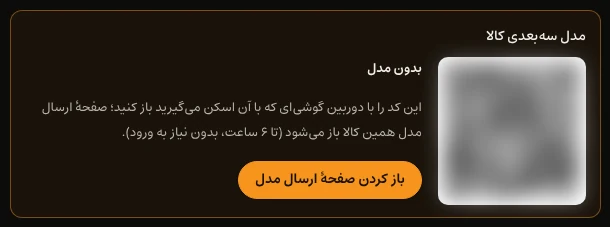
- From a computer: on the product’s page, the 3D model of this product box shows a QR code. Open it with the camera of the phone you scan with: the model page for that product opens, with no sign-in needed for 6 hours.
- From the phone: open the 3D model page from the panel’s menu and choose the product from the list.
1. Scan the product
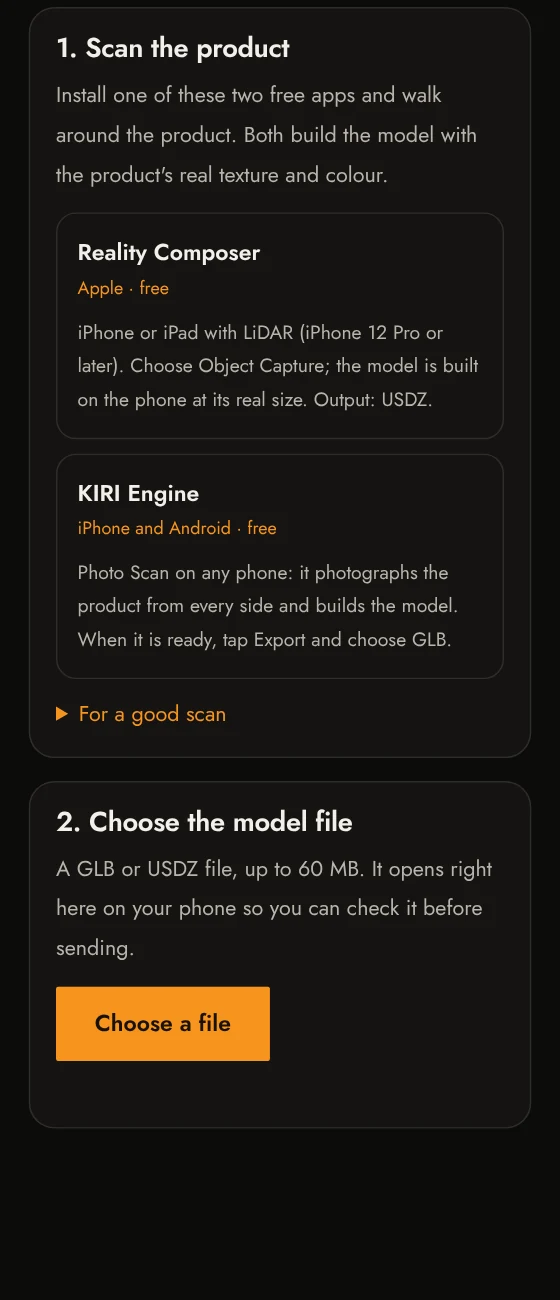
Install one of these two free apps. Both build the model with the product’s real colours and textures.
- Reality Composer (Apple): for an iPhone or iPad with LiDAR (iPhone 12 Pro and later). Choose Object Capture. The model is built on the phone and has its real size. Output: USDZ.
- KIRI Engine (iPhone and Android): Photo Scan works on any phone. When the model is ready, tap Export and choose GLB.
Even daylight or diffused lamps, with no hard shadows. Put the product on a plain, matt floor and clear the space around it. Walk slowly all the way round: once at its level and once from above. Keep only this product in the file; if the floor comes along, crop it in the app.
2. Choose the file
On the model page, tap Choose a file. A GLB or USDZ file of up to 60 MB is accepted. The model opens on the phone and you see it before sending.
3. Check that it stands upright and its size
- The product must stand on the floor. If it lies down or leans, fix it with Tip forward, Tip sideways and Spin.
- The model’s size is shown beside the size saved for the product. A LiDAR scan has the right size. If the two do not match, enter the Real height (cm) in centimetres, or correct the product’s size in the panel.
4. Send and confirm
- Tap Send the model. The model is made lighter for tours and design software, usually in under a minute.
- The result is the model designers and clients will see. If it is right, tap Confirm and send for review; if not, Send a different file.
- The vr-tecture team reviews the model and emails you the result. Once approved, the model’s status becomes “Live in the catalog”.
If the model is not accepted
- The file is larger than 60 MB, or the model is too heavy: export with lower quality or less detail in the scanning app.
- The file uses Draco compression: turn compression off when exporting.
- The model’s size does not match the product’s saved size: enter the real height, or correct the product’s size in the panel.
- The model was rejected: the reason is in the email and on the same page. Fix it and send a new file from that page.
Glass, mirrors, very glossy surfaces and very thin parts. For these products send the design file (GLB), or ask our team to build the model.