Find your way around the studio
Overview, Tours, Requests and Account: what each tab of your studio shows and where to find things.
Your studio has four tabs and one button that is always there: + New tour, at the top right.
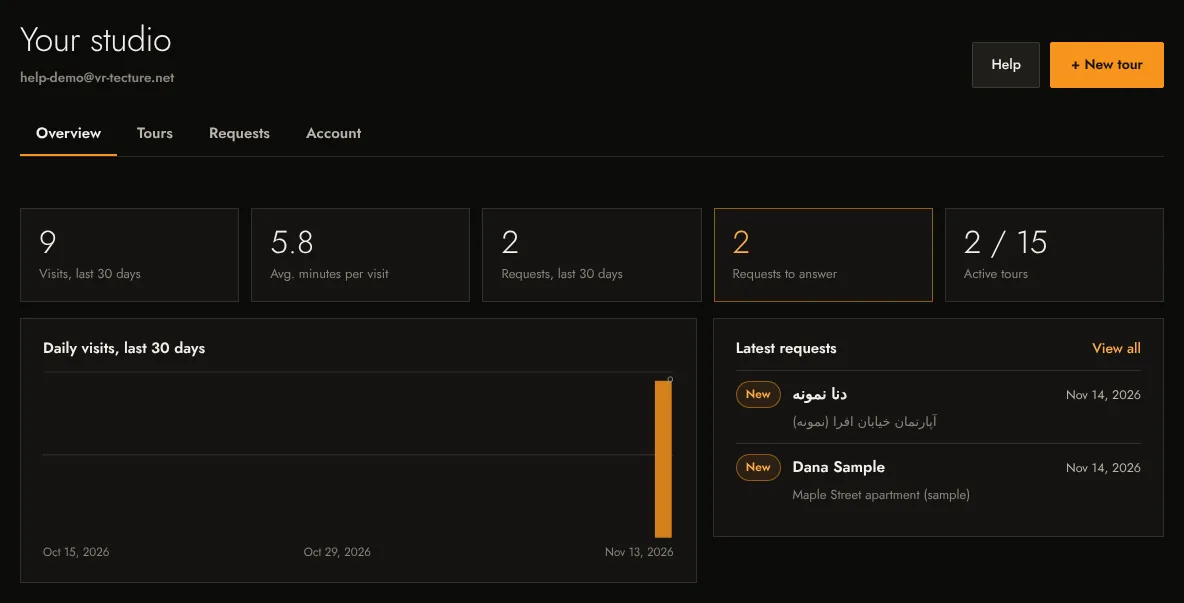
Overview
Your numbers for the last 30 days at a glance: visits, average minutes per visit, requests, requests still to answer and active tours against your plan. Below them are the daily visits chart and your latest requests; for new studios, also the Getting started list until its five steps are done. The Help button next to + New tour opens this help center.
Tours
One card per tour. A card shows how many spaces and styles the tour has, when you last changed it, its visits, minutes per visit and requests, and whether it is Ready or still has Missing models.
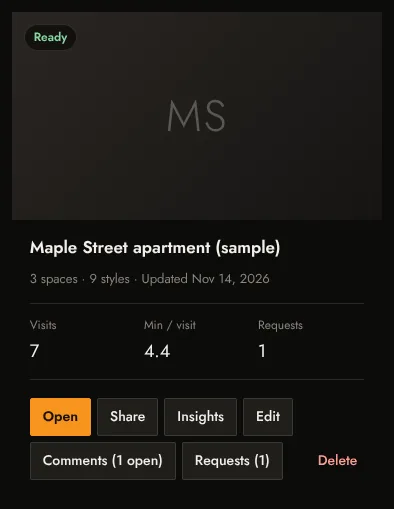
| Open | Opens the tour in a new tab. Signed in, you also get the designer buttons (start point, stops, info points). |
|---|---|
| Share | The private link, a QR code and the embed code. See Share link, QR code and embed. |
| Insights | What visitors did in this tour. See Tour insights. |
| Edit | Title, language, spaces, styles, models, finishes and client choices. |
| Comments | Appears once clients have commented; shows how many are still open. See Comments on the model. |
| Requests (n) | Opens the Requests tab filtered to this tour. |
| Delete | Select it twice within a few seconds to delete the tour. This cannot be undone. |
Under your tours you also find Start from a ready-made space. See Start from a ready-made space.
Requests
Every quote request from every tour, newest first, with search, status filter and CSV export. See Quote requests: answer, track and export.
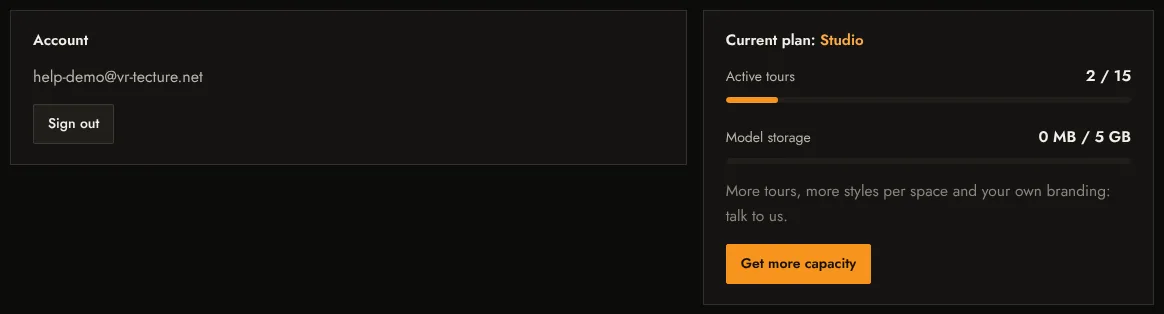
Account
Your plan and how much of it you use, your brand in tours and your studio team. See Plans and limits, Put your brand on your tours and Invite your team.