
Share link, QR code and embed
Send the private link, print the QR code or put the tour on your own website.
Every tour has a private link. Only people who have it can open the tour; it is not listed anywhere on vr-tecture or in search engines.
Open the share window
On the Tours tab, select Share on the tour card. (It also opens by itself when you create a tour from a template.)
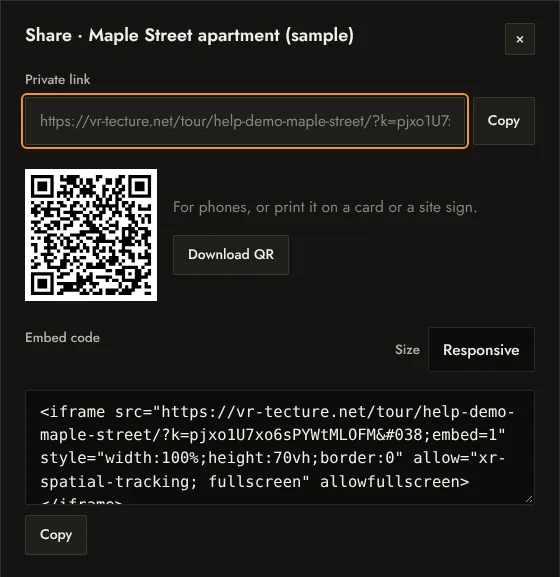
Private link
Select Copy next to Private link and paste it into an email, WhatsApp, Telegram or a message. The link carries a key (?k=…): keep it whole when you paste it.
To send a link that opens on a particular space, style and set of client choices, use Customize › Share this choice inside the tour. See Client choices and prices.
QR code
The QR code opens the same link on a phone. Select Download QR to save it as an SVG, which stays sharp at any size: print it on a business card, a brochure, a site sign or a sales-office wall.
Embed on your website
- Under Embed code, choose the Size: Responsive fills the width of your page; Fixed 16:9 keeps a widescreen frame.
- Select Copy and paste the code into your page as HTML: in WordPress, a Custom HTML block; in Wix or Squarespace, an Embed code element.
The embedded tour works like the link, including full screen, VR headsets and quote requests. Visits from your site count in Tour insights.
Who can see what
- Anyone with the link can walk the tour, use the tools, comment, approve and send requests.
- Only you and your team, signed in, see the designer buttons and can change the tour.
- To stop a tour being opened, delete it from its card. Ask us if you need a new link for an existing tour.