
Spaces and styles
A tour holds spaces (rooms or units); each space has one or more styles your client switches between.
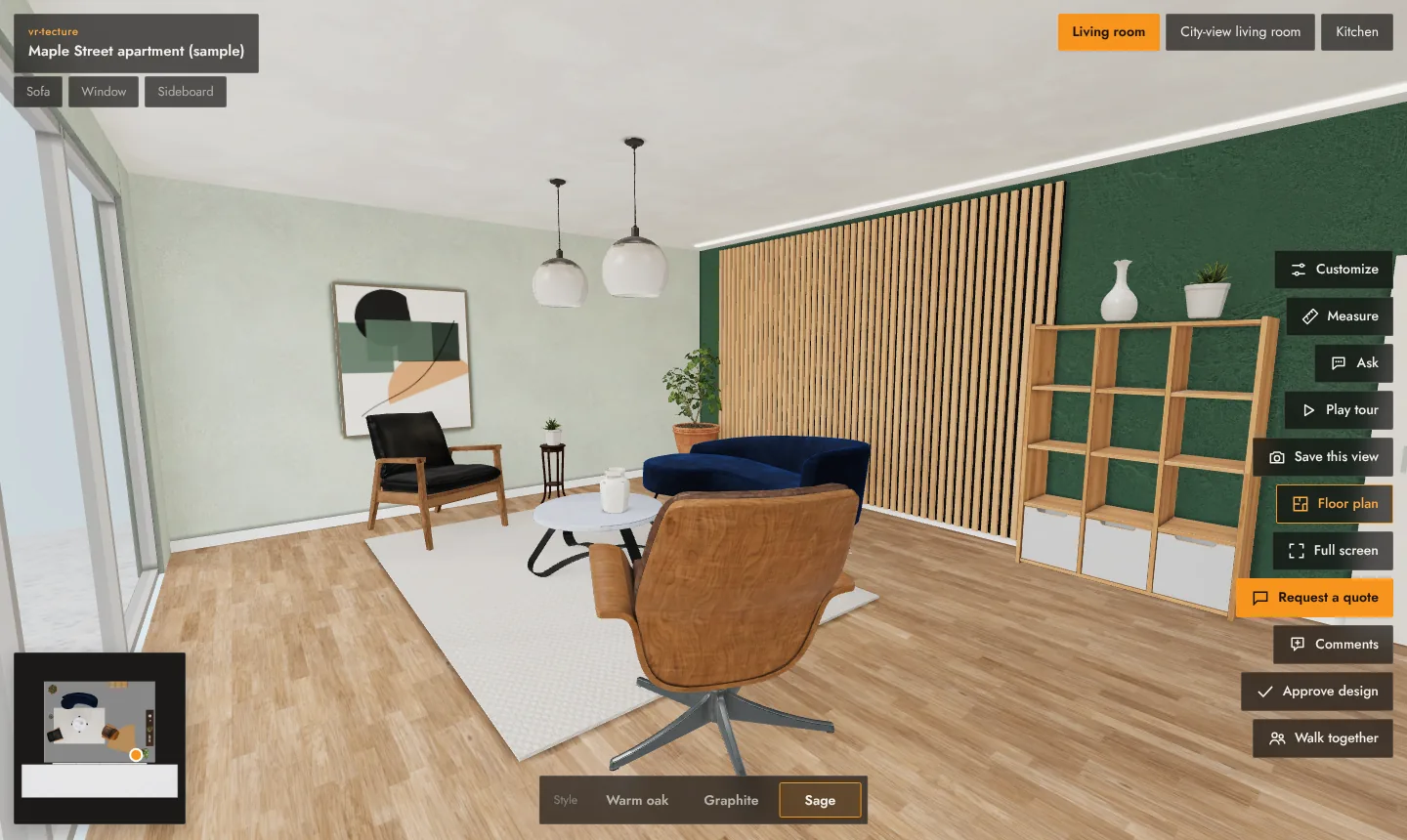
A tour is made of spaces, and every space has one or more styles. Your client switches spaces at the top of the screen and styles at the bottom.
What to use them for
- Spaces are places: Living room, Kitchen, Master bedroom, or whole units such as Unit 3B and Penthouse.
- Styles are versions of the same place: Warm oak, Graphite, Sage; or Standard and Premium finish packages. Each style has its own model, and can have its own price.
- Inside a style, client choices switch single surfaces or items (a worktop, a sofa) without a new model. See Client choices and prices.
Edit a tour
On the Tours tab, select Edit on the tour card.
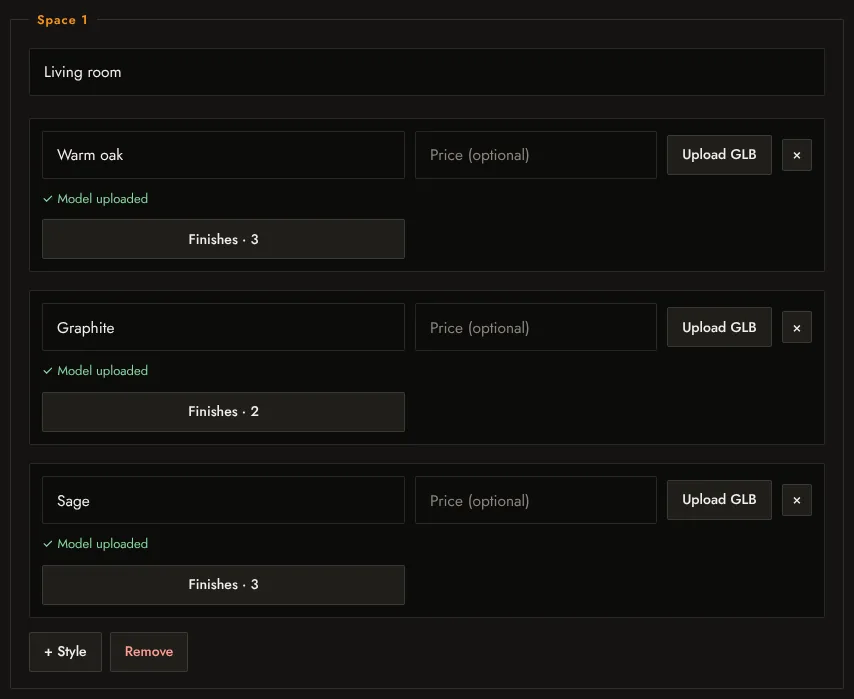
| Tour title | Shown at the top left of the tour and in your studio. |
|---|---|
| Tour language | English, Français or فارسی: the language of every button and message your client sees. |
| Send requests to | Where quote requests are emailed. Self-serve accounts use the account email. |
| Show “Request a quote” in the tour | Untick it for tours that should not collect requests, for example a finished project in your portfolio. |
| Space name | The label on the space button, for example “Kitchen”. |
| Style name and Price | The label on the style button. The price is optional and appears with the style and in requests, for example “$42,000” or “from $38,500”. |
| Upload GLB | The model for this style. See Supported files, sizes and units. |
| Finishes | Materials and client choices for this style. See Dress surfaces with real materials. |
Add, remove and reorder
- + Style adds a style to that space; × on a style removes it.
- + Space adds a space; Remove under a space removes it with its styles.
- Spaces and styles appear in the tour in the order they have in the editor.
- Nothing changes for your client until you select Save tour.
Your plan sets how many styles a space can have: 3 on Free, 6 on Starter, 12 on Studio and Developer. See Plans and limits.
Send a client straight to one space and style
The tour link opens at the first space and style. To send a link that opens somewhere else, open the tour, go to that space and style, select Customize and then Share this choice. The copied link opens the tour exactly there, with the client choices you set. See Client choices and prices.