Export from SketchUp
Export a COLLADA (.dae) file with its textures, zip it and upload it straight to your tour.
SketchUp Pro exports COLLADA (.dae), which vr-tecture converts in your browser. If you use a glTF exporter extension, a .glb works even better.
Before you export
- Hide what visitors should not see: other floors, the site, scale figures, section planes, guides and text. Hidden objects and layers (tags) are not exported.
- Model the floor, walls and ceiling as faces with thickness or at least one face each. Visitors walk on the floor and stop at walls.
- Fix reversed faces (blue/grey back faces facing the room). Right-click a face and choose Reverse Faces, or Orient Faces.
- Purge unused items: Window › Model Info › Statistics › Purge Unused. This drops unused materials and components that make the file heavy.
- Name groups for client options such as
Sofa = LinenandSofa = Leatherif you want the client to swap them. See Let clients swap furniture and fixtures.
Export COLLADA
- Choose File › Export › 3D Model…
- Set the file type to COLLADA File (*.dae).
- Open Options… and tick Export Texture Maps and Triangulate All Faces. Untick Export Two-Sided Faces, Export Hidden Geometry and Export Edges.
- Export. SketchUp writes
project.daeand a folderprojectwith the textures next to it. - Put the .dae and its texture folder in one ZIP (on Windows: select both, right-click, Send to › Compressed (zipped) folder; on a Mac: Compress 2 items).
- In the tour editor, select Upload GLB on the style and choose the ZIP.
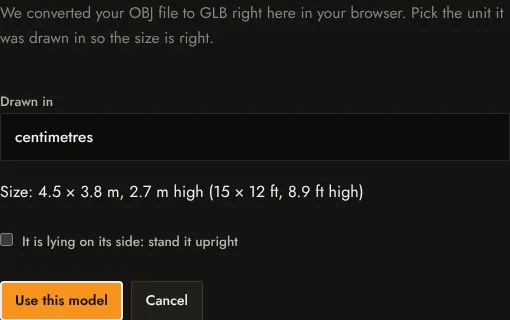
- In Check the model size, pick the unit you modelled in. SketchUp models are often in inches or metres; the dialog shows the size it reads so you can check it against the real room.
Better: export GLB
A glTF exporter extension for SketchUp writes a .glb with materials and textures inside one file. Upload that .glb directly; it skips conversion and the unit question, because glTF is always in metres.
If something looks wrong
- Black or missing textures: the texture folder was not in the ZIP. Zip the .dae together with its folder.
- Walls you can see through from one side: reversed faces. Reverse them in SketchUp and export again.
- The room is tiny or huge: the wrong unit was picked. Upload again and pick the unit that gives the real size.
More in Upload and conversion problems.