
Comments on the model
Clients pin comments on a wall or a cabinet; you answer and mark them resolved.
Comments let your client put a note on an exact spot of the model: this shelf lower, that wall in a lighter colour. You answer in the same place and mark each one resolved, so feedback stops getting lost in long email threads.
How a client comments
- In the tour, select Comments, then + Add a comment.
- Tap the spot the comment is about: a wall, a cabinet, a piece of furniture. (Esc cancels.)
- Write the comment and a name, and select Post comment. A picture of what they were looking at is attached automatically; they can untick Attach a picture of this view.
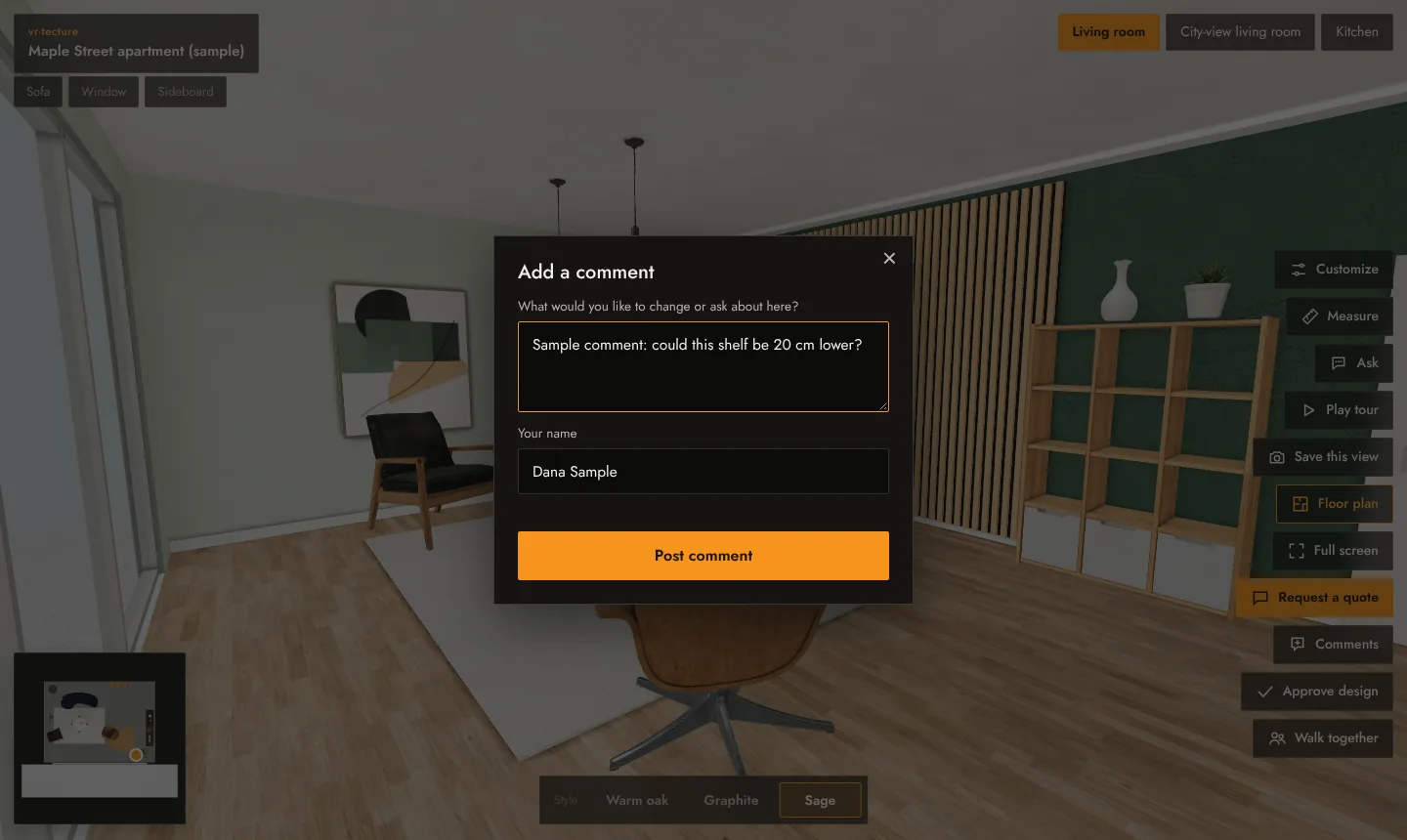
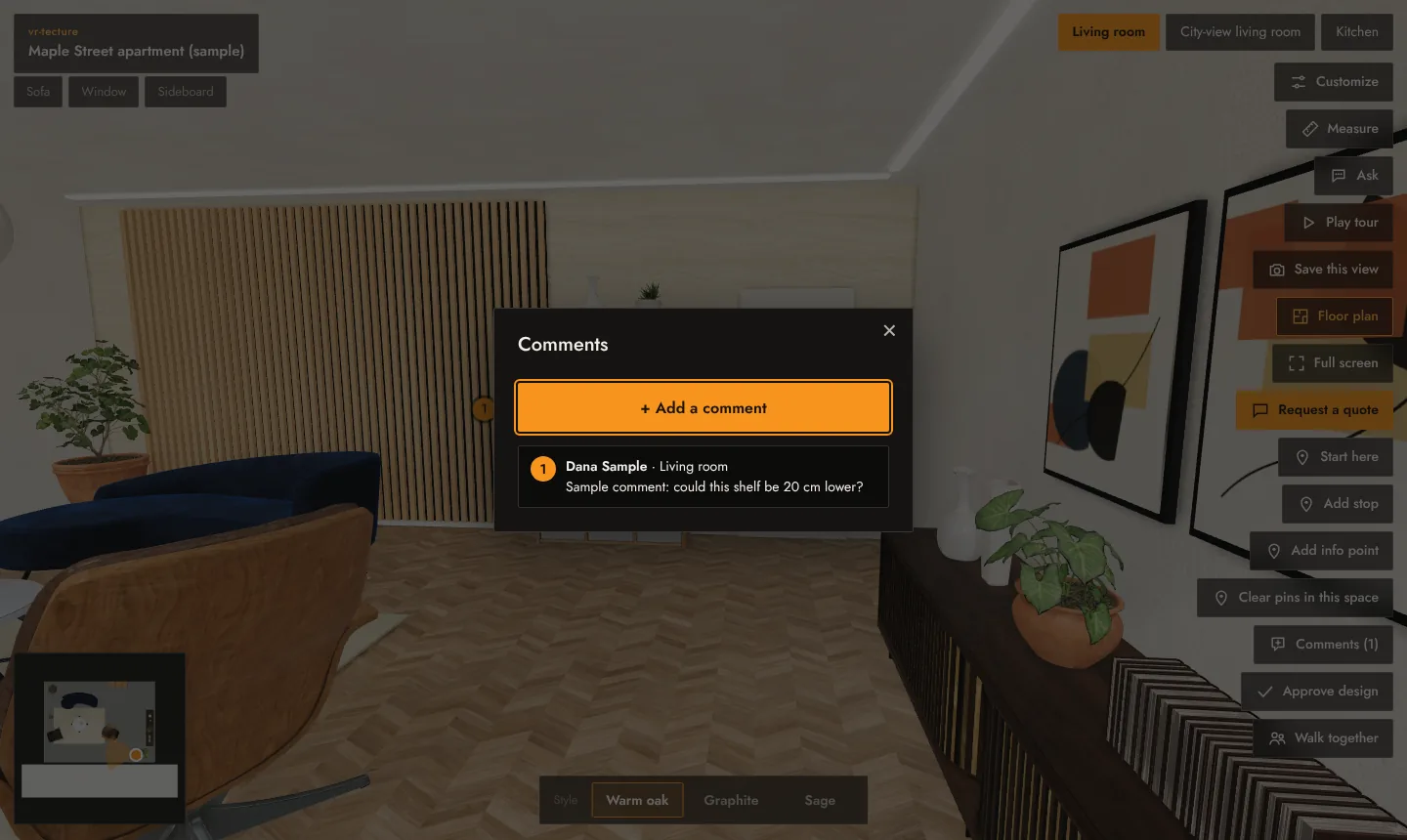
The comment appears as a marker in the model and in the Comments list. Everyone with the tour link sees the comments.
Answer and resolve
We email you when a client comments. On the Tours tab, the tour card shows Comments with the number still open; it opens the tour at the comments.
- Open a comment to see the picture of the view it was written from (select it for full size), and use Reply. Your replies are marked Designer.
- When it is dealt with, select Mark resolved. Reopen brings it back.
- Delete removes a comment, for example one posted by mistake.
Good to know
- A comment stays on its spot when you upload a new model for the style, so you can check the change where it was asked for.
- A tour holds up to 400 comments.
- When the design is agreed, ask the client to use Approve design. See Design approval and its record.