
Quote requests: answer, track and export
Every request with the client’s selections; statuses, private notes, replies and a CSV export.
When a client selects Request a quote in a tour, the request lands on the Requests tab of your studio and in your email. It carries the client’s contact details, their note and everything they picked in the tour.
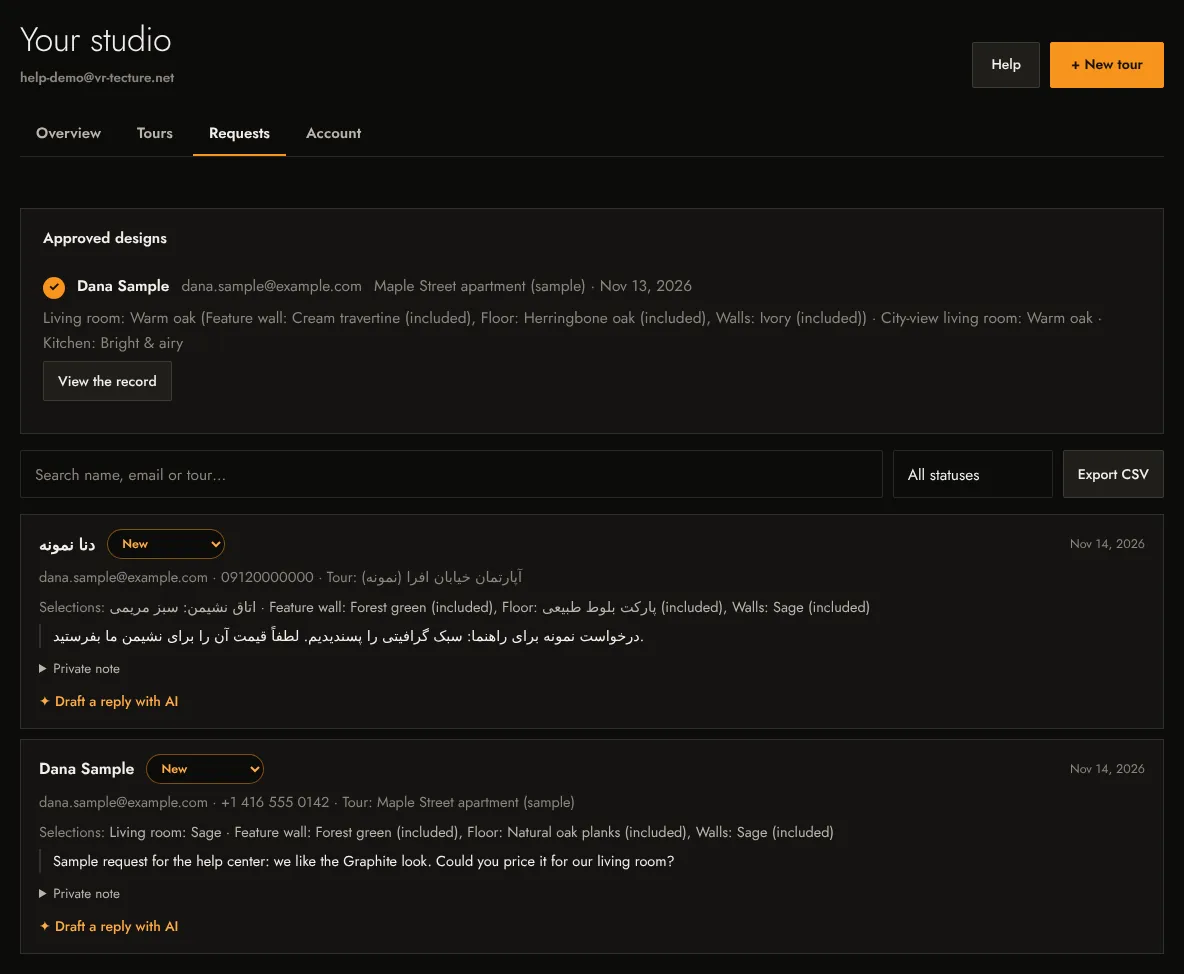
What a request shows
- Name, email and phone, the tour and the date.
- Selections: the style of each space and each client choice with its price or note, for example Living room: Sage · Feature wall: Nero marble (+$3,100).
- The client’s message.
Keep track
- Status: set each request to New, Contacted, Won or Lost. The Overview counts the ones still to answer.
- Private note: a note only you and your team see, for example “Sent revised quote on Monday”.
- Search and filter: search by name, email or tour, and filter by status.
- Export CSV: download the list for a spreadsheet or your CRM.
Reply
- Reply by email opens your email program with the client’s address filled in.
- Draft a reply with AI writes a first reply that mentions what the client picked. Read and edit it, then Open in email. The AI never sends anything itself.
Where requests are emailed
To your account email (for older accounts, the address in the tour’s Send requests to). Request emails only go to a confirmed address; see Create your account and sign in. If emails do not arrive, check your spam folder and add [email protected] to your contacts; the requests are always on the Requests tab.
Approvals
Below the requests, Approved designs lists the designs clients approved, each with its record. See Design approval and its record.
For a portfolio tour that should not collect requests, untick Show “Request a quote” in the tour in the tour editor.