
Your first tour in ten minutes
Create a tour, upload a model, set where visitors start and send the link: the five steps of the Getting started list.
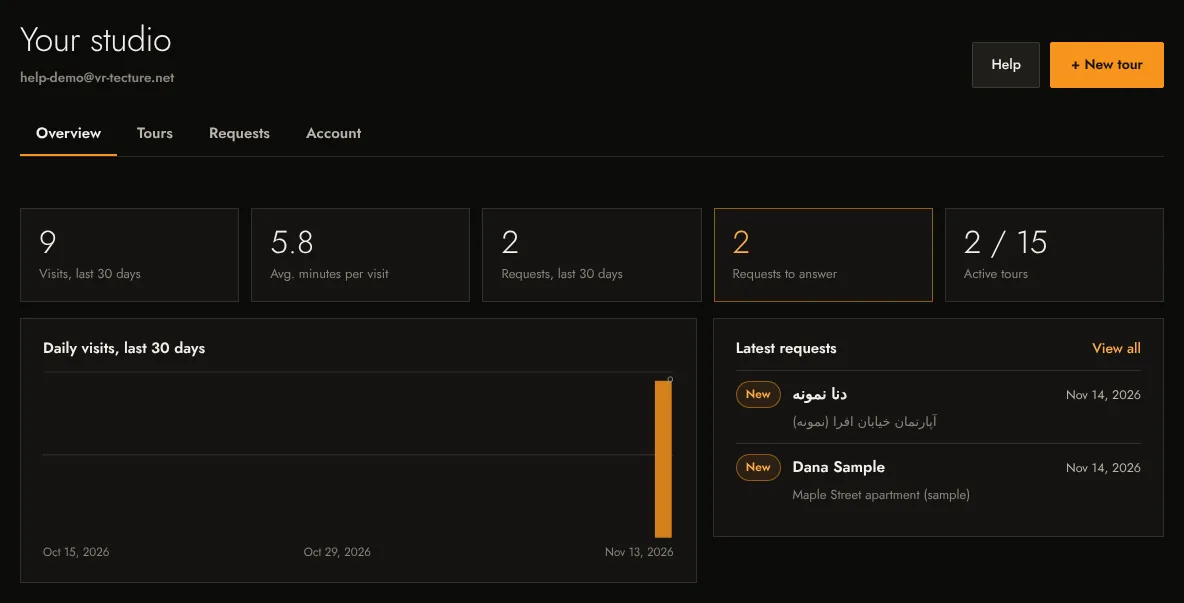
The Getting started list on your studio’s Overview has five steps. This page walks through them in order. Plan on ten minutes once your model is exported.
1. Create your first tour
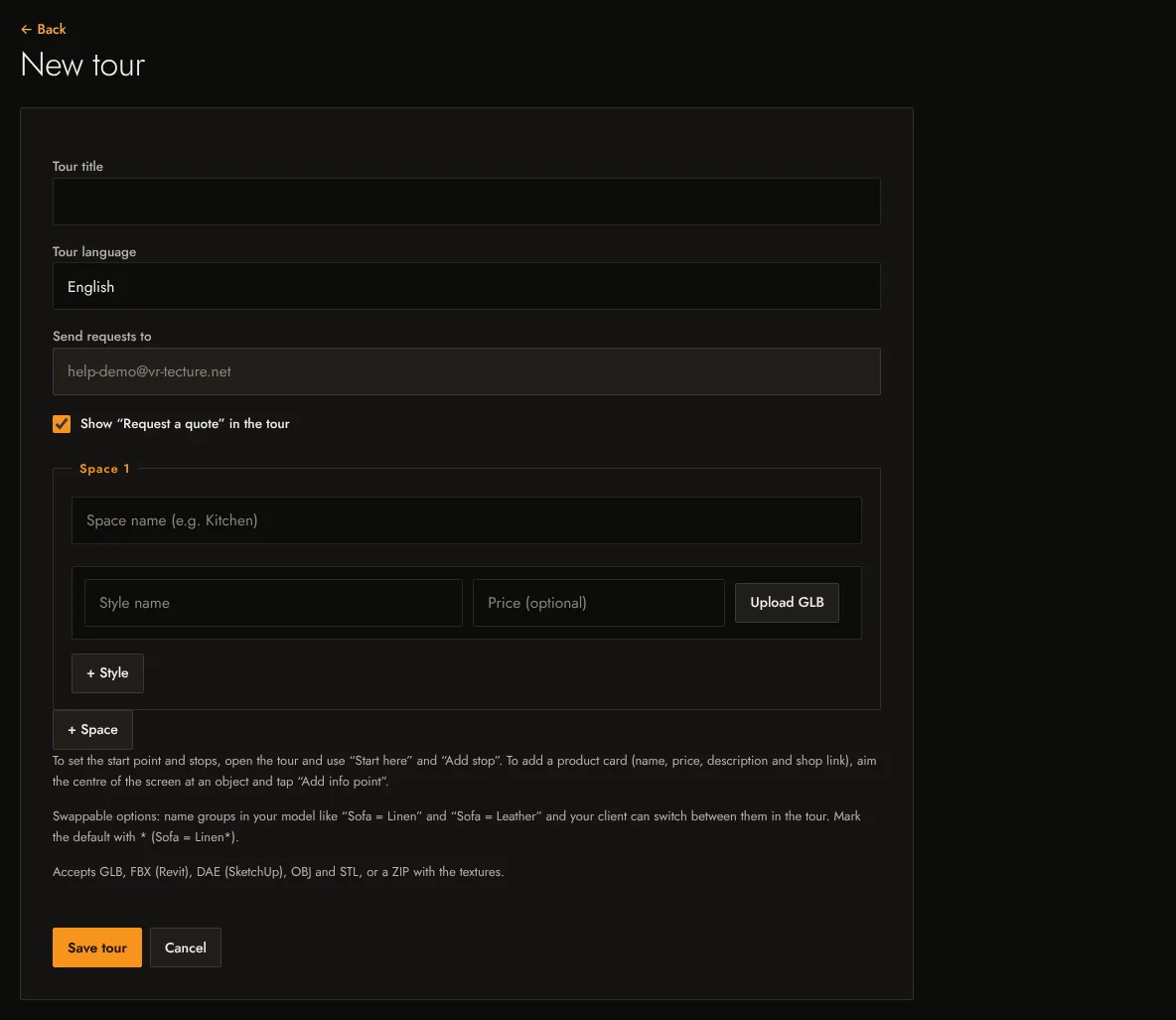
- In your studio, select + New tour.
- Give it a Tour title your client will recognise, for example “Maple Street apartment”.
- Pick the Tour language: English, Français or فارسی. This is the language of the buttons your client sees.
- Keep Show “Request a quote” in the tour ticked if you want clients to send you requests.
Under Start from a ready-made space on the Tours tab, select Create a tour from this. You get a furnished room with realistic light in a few seconds. See Start from a ready-made space.
2. Upload a model for every style
A tour starts with one space and one style. Name the space (Kitchen, Living room) and the style (Warm oak), then select Upload GLB. Despite the name, the button also takes FBX, DAE, OBJ, STL and ZIP files: they are converted to GLB in your browser. When the row shows ✓ Model uploaded, select Save tour.
Add more styles with + Style and more rooms with + Space. See Supported files, sizes and units and Spaces and styles.
3. Set the start point inside the tour
Open the tour from the Tours tab with Open. While you are signed in, the tour shows designer buttons. Walk to the spot where your client should arrive, face the view you want them to see first and select Start here. See Start point, stops and the guided tour.
4. Send the tour link to a client
On the Tours tab, select Share on the tour card. Copy the private link, download the QR code, or copy the embed code for your website. See Share link, QR code and embed.
5. Receive your first client request
When a client selects Request a quote in the tour, the request appears under Requests with everything they picked, and we email it to you. See Quote requests: answer, track and export.
Open the link in a private window, or on your phone, to see exactly what your client will see.