
Invite your team
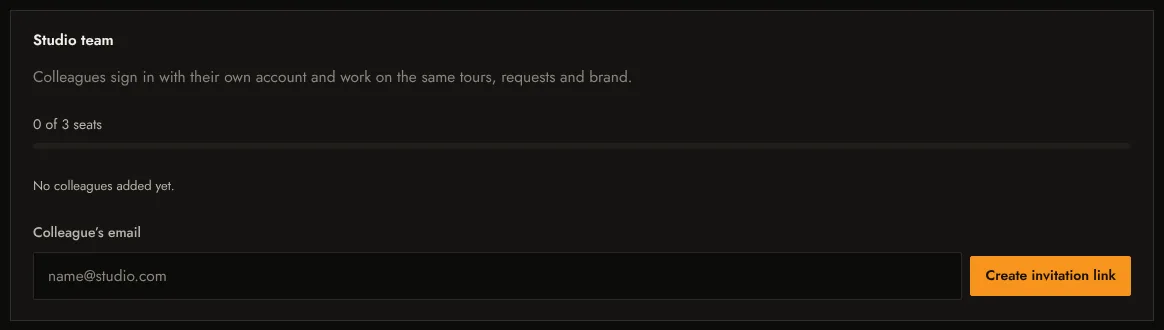
Colleagues sign in with their own account and work on the same tours, requests and brand.
On the Studio plan (3 seats) and the Developer plan (10 seats), colleagues work in your studio with their own sign-in. They see and edit the same tours, answer the same requests and use the same brand. Nobody shares a password.
Invite a colleague
- In your studio, open Account and find Studio team.
- Type your colleague’s email and select Create invitation link.
- Copy the link and send it to them yourself, by email or message. It works only for that email address and expires after 7 days.
What your colleague does
- Opens the link. It says who invited them and to which studio.
- Creates an account, or signs in, with the invited email address.
- Confirms that email address if the account is new. They join as soon as it is confirmed.
- Sees You are working in … studio at the top of the studio.
Manage the team
- The card shows used seats, for example 1 of 3 seats, and pending invitations.
- Cancel invitation withdraws a link that has not been used.
- Remove takes a colleague out of the studio. Their own account stays; the tours stay in your studio.
- A colleague can use Leave team (select it twice to confirm).
Rules worth knowing
- The studio owner manages the plan and the brand.
- A person who owns a team cannot join another one.
- If every seat is taken, the invitation says All team seats are taken. Remove someone or move to the Developer plan.