
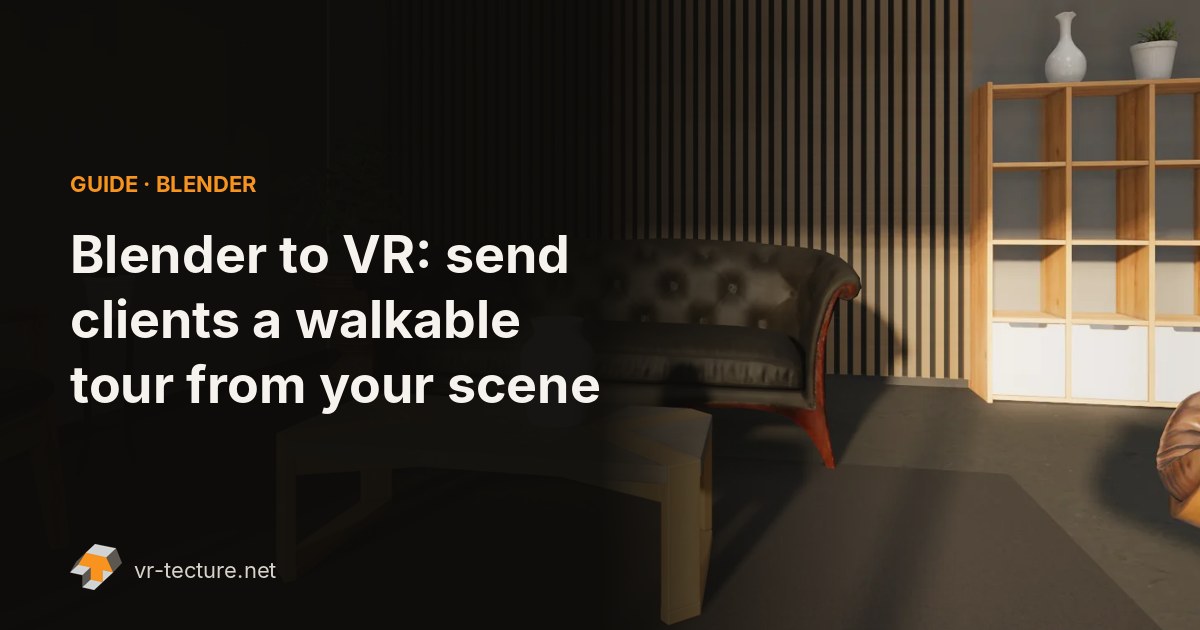
Short answer: the quickest way to put a Blender scene in front of a client in VR is to publish it as a web tour and send a link. The client opens it on a phone or computer, or in the browser of a VR headset, with nothing to install.
Prepare the scene
- Apply scale and check the scene is in real-world units: VR shows it at 1:1.
- Join or instance repeated objects and remove what the client will never see.
- Use Principled BSDF materials with image textures; they translate cleanly to glTF.
Two routes from Blender to VR
1. A headset connected to your workstation
Blender can show the viewport in a headset connected to the computer. This suits design reviews at your own desk. It needs a VR-ready graphics card, and the client has to be with you.
2. A web tour that opens from a link
The free vr-tecture plugin for Blender publishes the scene as a walkable tour. The scene is converted to glTF/GLB, the open format Blender exports natively. The tour runs in the browser through WebGL and WebXR, so the same link works on a phone, a computer and in Meta Quest, Pico, Apple Vision Pro and PC headsets.
In the tour the client can:
- walk freely at real scale;
- switch between the finish and furniture options you prepared, each with its price if you want;
- pin comments to the model and approve the design, with the choice recorded for you.
Step by step
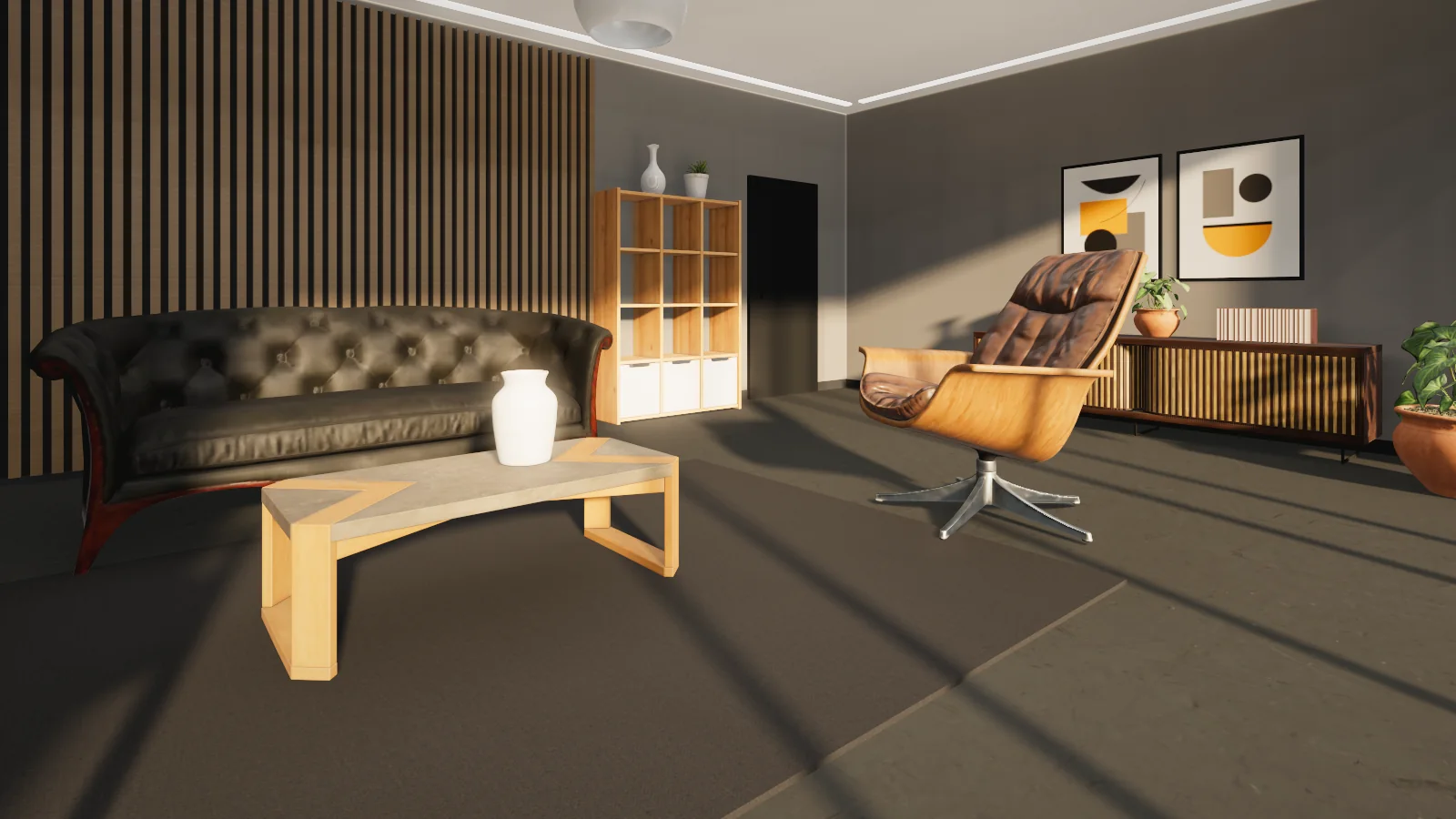
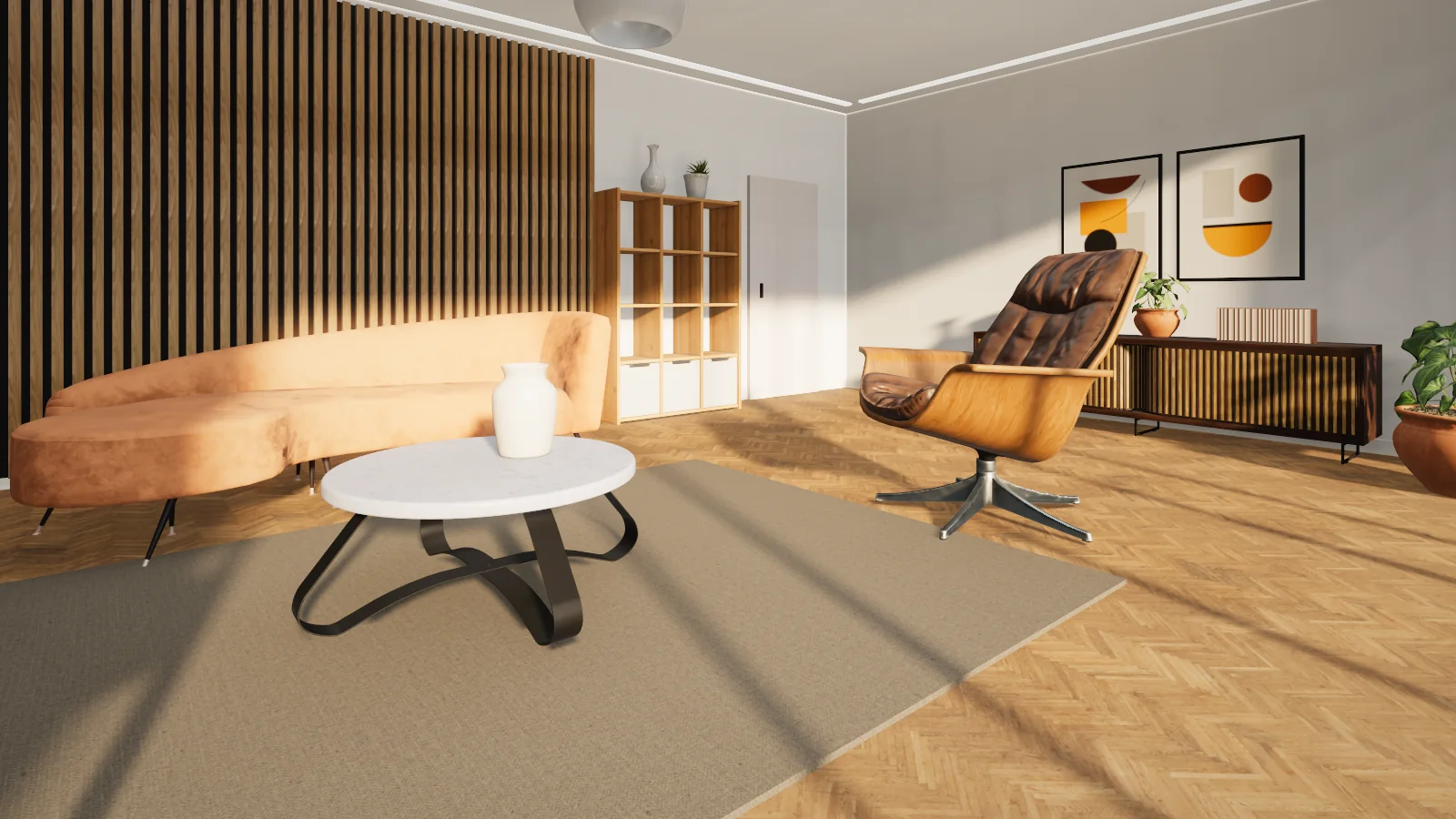 Style 1Style 2
Common questions
Will my materials survive?
Standard physically based materials and their textures carry over. Effects that only exist in an offline renderer do not; the tour uses real-time web graphics.
Is it free to try?
Yes. The plugin is free and the Free plan includes one active tour. You can also open the demo tour first.