
Short answer: there are five ways to put a walkable 3D design in front of a client who is not in your office: a recorded video, a program file from a real-time renderer, a browser export drawn on the client’s device, a cloud stream, and a tour built for client decisions. They differ in what the client needs, how good the picture is, and whether the client can only look or can also choose and approve.
1. A video or a shared screen
You record a walk through the model, or share your screen on a call. It needs no special tool and the picture is as good as your renderer. The client cannot go where they want, and feedback comes back by message.
2. A program file from a real-time renderer
Real-time renderers can package a scene as a program the client runs. Enscape, a real-time rendering plugin for Revit, SketchUp, Rhino, Archicad and Vectorworks, calls this an executable standalone. The picture matches what you see at your desk, but the client needs a Windows computer with a capable graphics card and has to download a large file.
3. A browser export drawn on the client’s device
The scene is converted for the web and opened from a link; the client’s own phone or computer draws it. Enscape’s Web Standalone export works this way, using WebGL 2 in the browser. Shapespark turns 3D models into online walkthroughs with baked lighting that are shared by a link or embedded in a website, on desktop, mobile and VR.
Nothing is installed and it works on ordinary hardware. Lighting is simpler than in an offline render, and very heavy scenes have to be simplified.
4. A cloud stream
The scene runs on a graphics server and the client receives the picture as a video stream. Twinmotion Cloud works this way: presentations are streamed from a cloud GPU with pixel streaming and shared by a link, a QR code or an embed. Quality is that of the desktop application. Because the picture is streamed, the experience depends on the client’s connection.
5. A tour built for client decisions
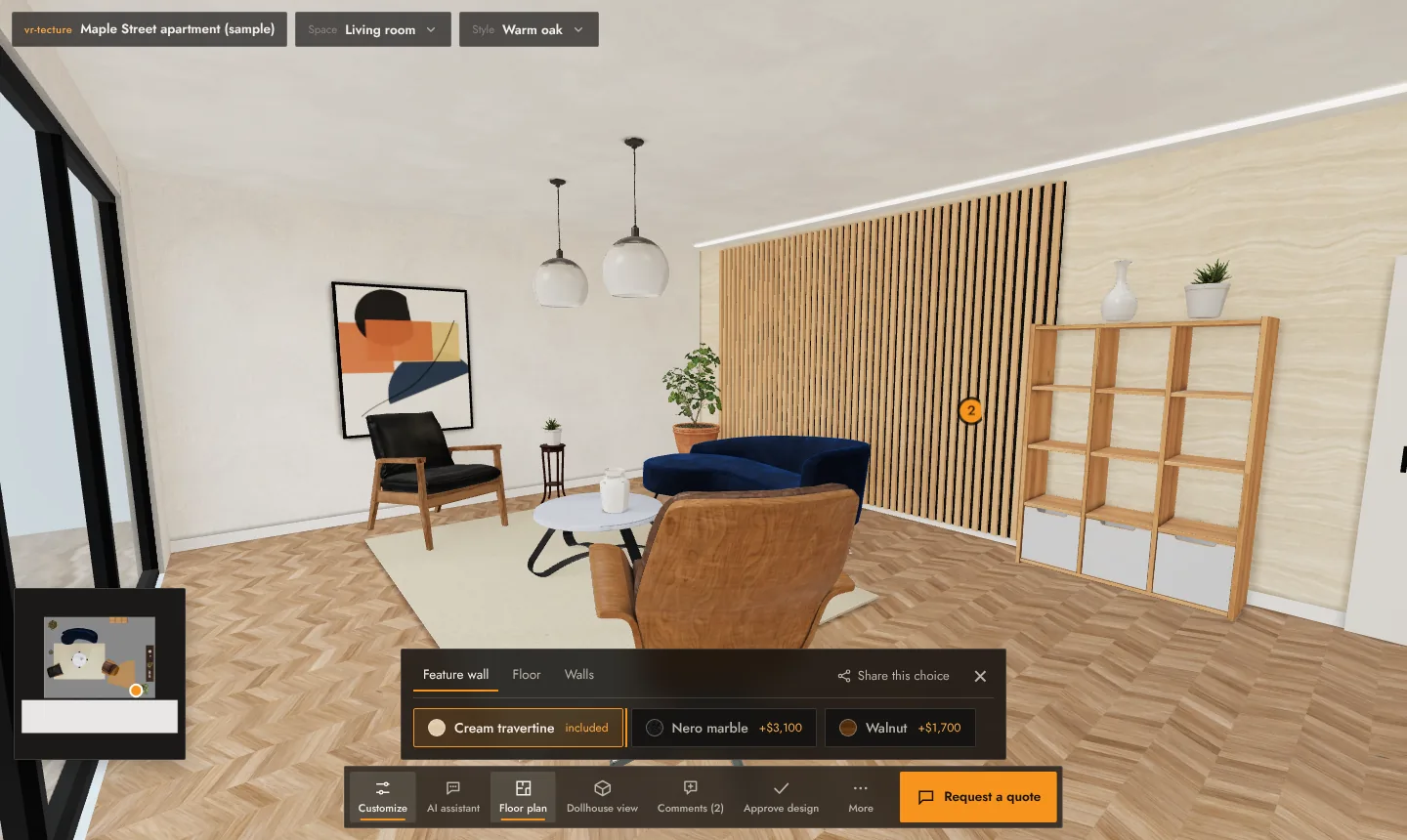
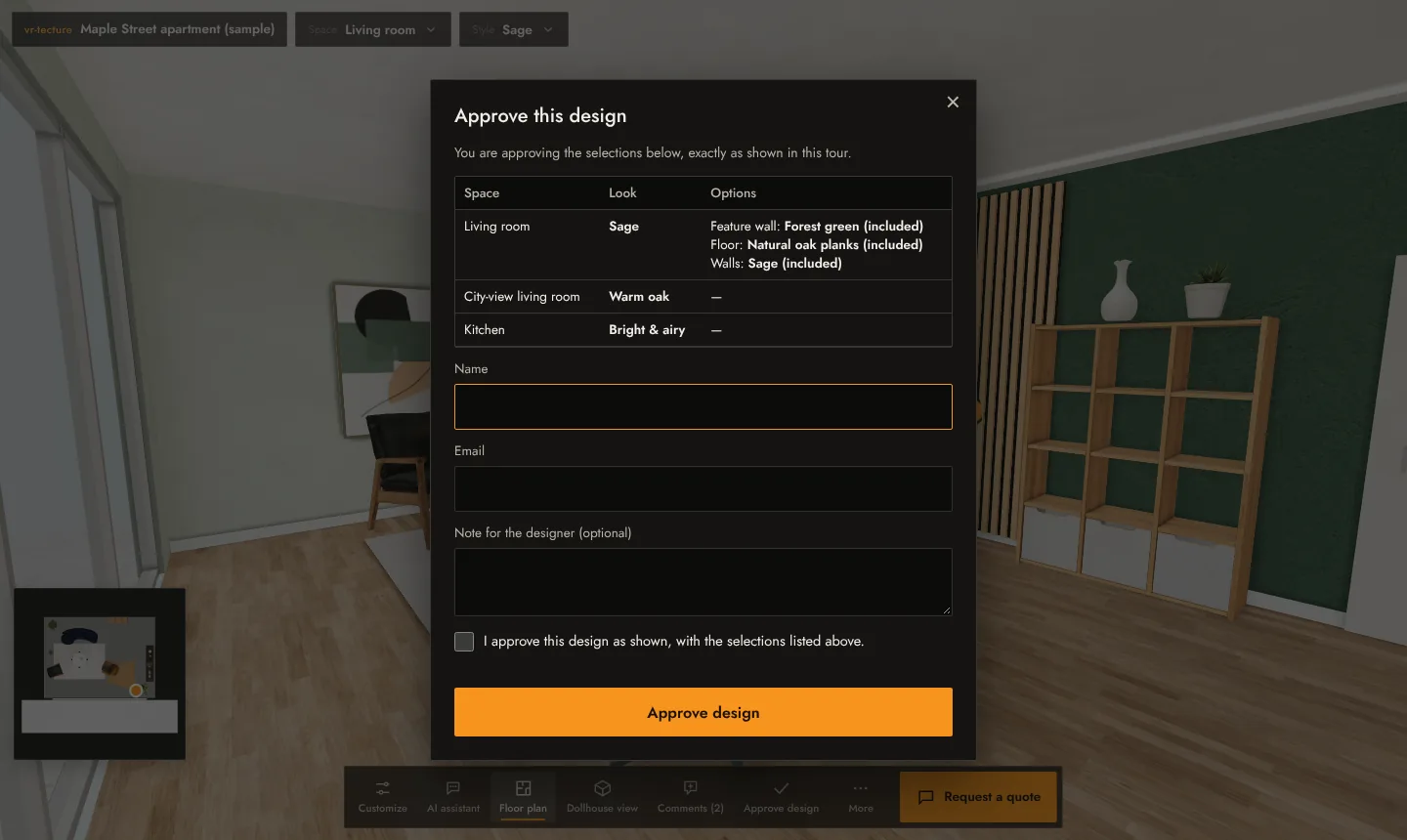
This is a browser tour, drawn on the client’s device like option 3, with the tools of a client review added. In vr-tecture the client switches between the finish and furniture options you prepared and sees the price of each, pins comments to the model, approves the design with a dated record, and can ask for a quote. Tours are published from SketchUp, Revit, Blender, 3ds Max and Rhino with free plugins, or from GLB, FBX and IFC files, and the same link opens in VR headsets through WebXR.
Side by side
| Option | The client needs | The client can |
|---|---|---|
| Video or shared screen | Any device | Watch |
| Program file | A Windows PC with a strong graphics card | Walk freely |
| Browser export | A phone or computer with a modern browser | Walk freely |
| Cloud stream | A browser and a steady connection | Walk freely |
| Decision tour | A phone or computer with a modern browser | Walk, compare options with prices, comment, approve |
How to choose
- You need the best possible picture for marketing: a render or video, or a cloud stream.
- You only need the client to see the space: a browser export is the lightest route.
- You need a decision: use a tour where choices, comments and approval are recorded. See presenting with fewer revisions.
Product details change; this overview reflects each vendor’s own documentation as of November 2026.
Common questions
Can I combine them?
Yes. Many studios agree the design in an interactive tour and then render the agreed version for their portfolio.
Which of these work in a VR headset?
Browser tours that support WebXR open from the same link in a headset’s browser; see what WebXR is. Desktop renderers support headsets connected to the computer.