Skip to content
How it works Features Who it's for Demo tourWalkable property tour Plug-ins Pricing AR studio About News Help Contact
Start freeRequest a demo

All plug-ins

vr-tecture plug-inRevitBeta · v0.1.0

Your Revit 3D view, straight into a tour.

No FBX or IFC export. Set up the 3D view the way you want it and publish; hidden categories and the section box are respected.

vr-tectureRevit
New tourExisting tour
Publish
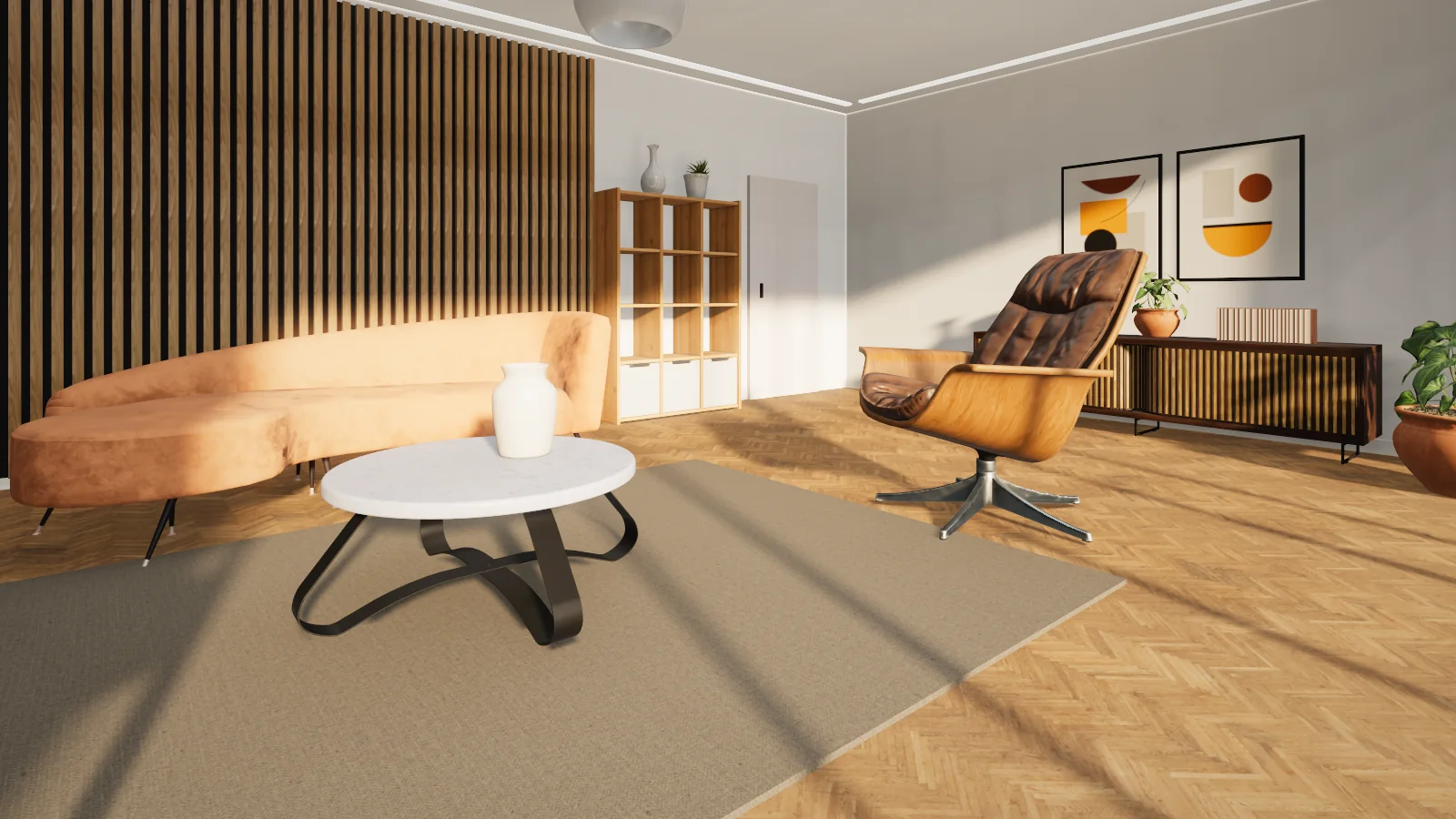
A living room in a walkable vr-tecture tourThe published tour
Version
0.1.0 · Beta
Works with
Revit 2022–2027
Operating system
Windows
Panel language
English and Persian
Download size
76 KB

Install and first tour

Three steps, about five minutes

  1. 1

    Install

    Unzip the download and run install.cmd. The first time Revit asks, choose Always Load.

  2. 2

    Connect the account

    On the Add-Ins tab select vr-tecture, then Connect account, and approve the code in the browser.

  3. 3

    Publish

    Open a 3D view, fill in the names and select Publish.

Features

The view

What the view shows is what is published

Hidden categories, the section box and linked models go to the tour exactly as the view has them.

  • Colour, transparency and the appearance image of materials travel
  • Textures repeat at their own real-world size
  • A perspective view is the starting point; other perspective views become stops
Library

Library materials in the project

Create the material makes a Revit material named after the library item. Paint it on faces or use it in your types; the tour shows it at full quality.

  • No bundled libraries that could clash with other add-ins
  • Panel in English and Persian
  • One build for 2022 to 2024, one for 2025 and later

In this version

What is in, and what is not yet

  • Publish a 3D view to a new or existing tourIn
  • Materials with their appearance imageIn
  • Library materialsIn
  • Persian panelIn
  • Catalog productsNot yet
  • Code-signed add-inNot yet

This plug-in is new. If something does not work on your computer, tell us the software and its version.

Questions

Common questions

Why does Revit warn when it loads the add-in?

The add-in is not code-signed yet. Choose Always Load the first time and Revit will not ask again.

Is the whole project published, or one view?

Only what the open 3D view shows. Use the section box and hidden categories to set the extent.

Are the plug-ins free?

Yes. Downloading, installing and connecting a plug-in is free, and the free plan publishes one tour. For more tours, move up a plan.

Is my password stored in the design software?

No. The plug-in shows a code and you approve it in the studio. You can disconnect there or in the plug-in at any time; published tours stay online.

Does the plug-in change my design file?

No. It builds a copy of the model for the tour and sends that. Large textures are scaled down in that copy only.

Do I need a new tour after changing the design?

No. Publish again; the same tour and the same link are updated.

Ready for your first tour from Revit?

Connected apps work on every plan, the free one included.See the plansAll plug-ins